Somewhere between "I should really follow up with her" and actually doing it, the lead goes cold. Not because you forgot — because you got busy, the moment passed, and by the time you remembered it felt awkward to reach out.
That's the problem we just solved.
Postalott v1.3 is live, and it brings two powerful new features directly into your Facebook experience: a full Chatalott CRM panel that appears on every conversation, and automatic Messenger message scheduling that sends your follow-ups for you — even while you're making lunch.
Here's how it all works.
The idea behind it: your CRM is the brain, Postalott is the hands
Your Chatalott CRM knows everything — who your contacts are, where you left off, what you want to say next, and when the timing is right. But knowing isn't the same as doing. The Postalott Chrome extension is what actually does it: it opens Messenger, sends your message, attaches your image, and marks it done — all without you touching a thing.
Set it up once. Let it run in the background. Your follow-ups stop being a to-do list and start taking care of themselves.
What you need before you start
- A Chatalott account
- The Postalott Chrome extension, installed and enabled — it's live on the Chrome Web Store now
- Google Chrome as your browser
That's it. Install the extension once and everything unlocks across your Contacts, Follow-ups, and the Postalott command center.

Part 1 — The CRM overlay: your Vault, inside every conversation
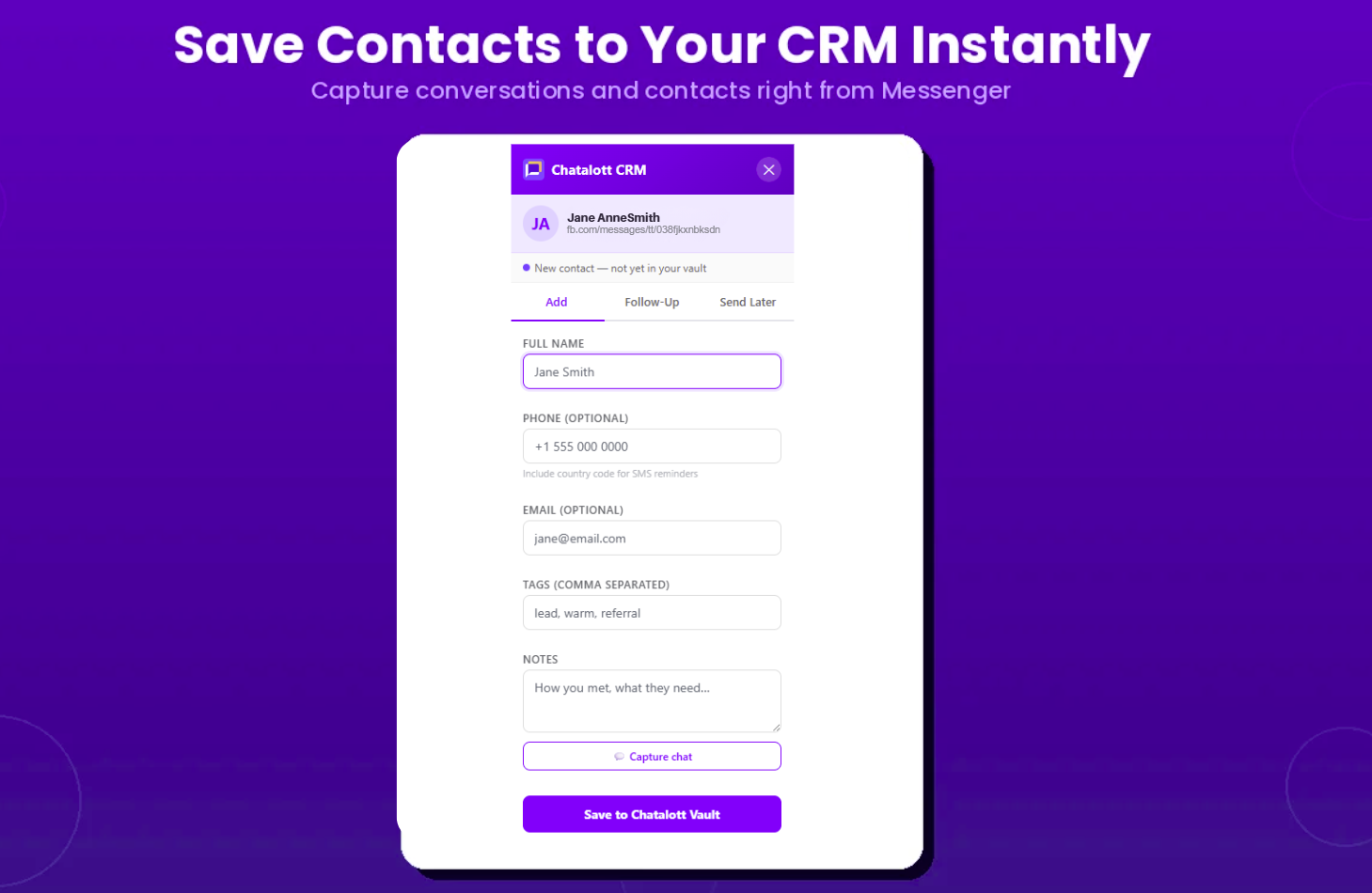
The first thing you'll notice after installing v1.3 is the Chatalott panel that appears on the right side of every Facebook and Messenger conversation. No tab switching. No copy-pasting names into another app. Your CRM is just... there.
When you open a conversation, Postalott reads the person's name and profile link automatically and pulls up their record from your Vault. If they're already a contact, you see everything you know about them. If they're new, you can add them in about 10 seconds.
From the panel you can:
- Save them to your Chatalott Vault with name, phone, email, and tags
- Write notes about how you met or where they are in your process
- Capture the chat history with one click
- Jump straight into scheduling a follow-up or a message
This alone changes how fast you can work. Instead of logging conversations after the fact, you're doing it in the moment — when the details are fresh and the person is right in front of you.
Part 2 — Messenger scheduling: send the right message at the right time, automatically
This is the feature people have been asking for.
You can now write a Messenger message inside Chatalott, pick a date and time, and have it sent automatically by the Postalott extension — no reminders, no manual sending, no forgetting.
You can schedule from three places depending on how you work:
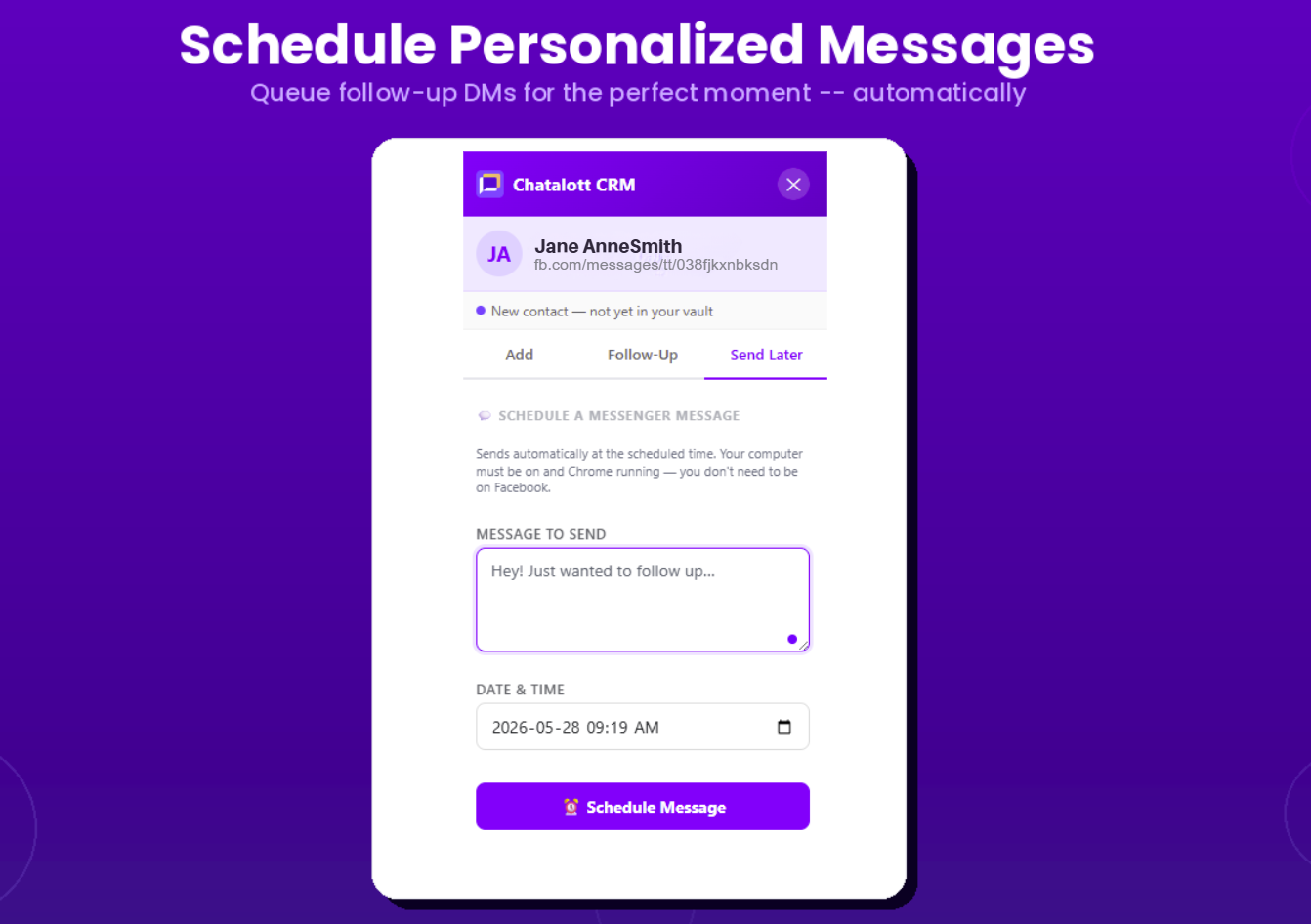
- The Send Later tab in the CRM overlay — right inside a conversation, while you're talking to someone
- A contact's profile — from their detail page in your Vault
- A follow-up reminder — attach a message directly to a reminder and it fires automatically on the due date
Step by step: send your first scheduled message
1. Install and pin the extension
Add Postalott from the Chrome Web Store and pin it to your toolbar so you can confirm it's active. You don't need to keep the popup open — installed and enabled is all it takes.

2. Open a conversation and save the contact
Open any Facebook or Messenger conversation. The Chatalott panel appears automatically on the right. If this person isn't in your Vault yet, fill in their details and hit Save to Chatalott Vault. If they're already there, you'll see their full record.
3. Go to Send Later and write your message
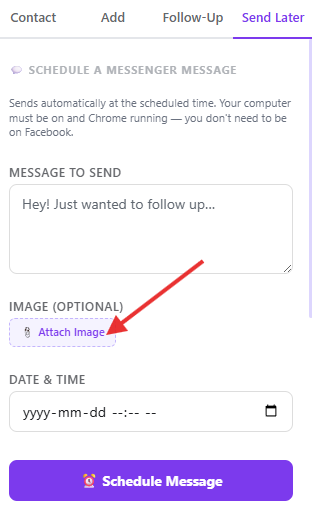
Click the Send Later tab. Type your message — or use a template and let AI polish it. You can attach an image too, which is perfect for product photos, event flyers, or anything visual you'd normally send manually.
4. Pick your date and time
Choose when you want it to go out. Chatalott will remind you of the one thing that matters: keep your computer on and Chrome open at that time so the extension can do its job.
5. Watch it in the Pending Messages dashboard
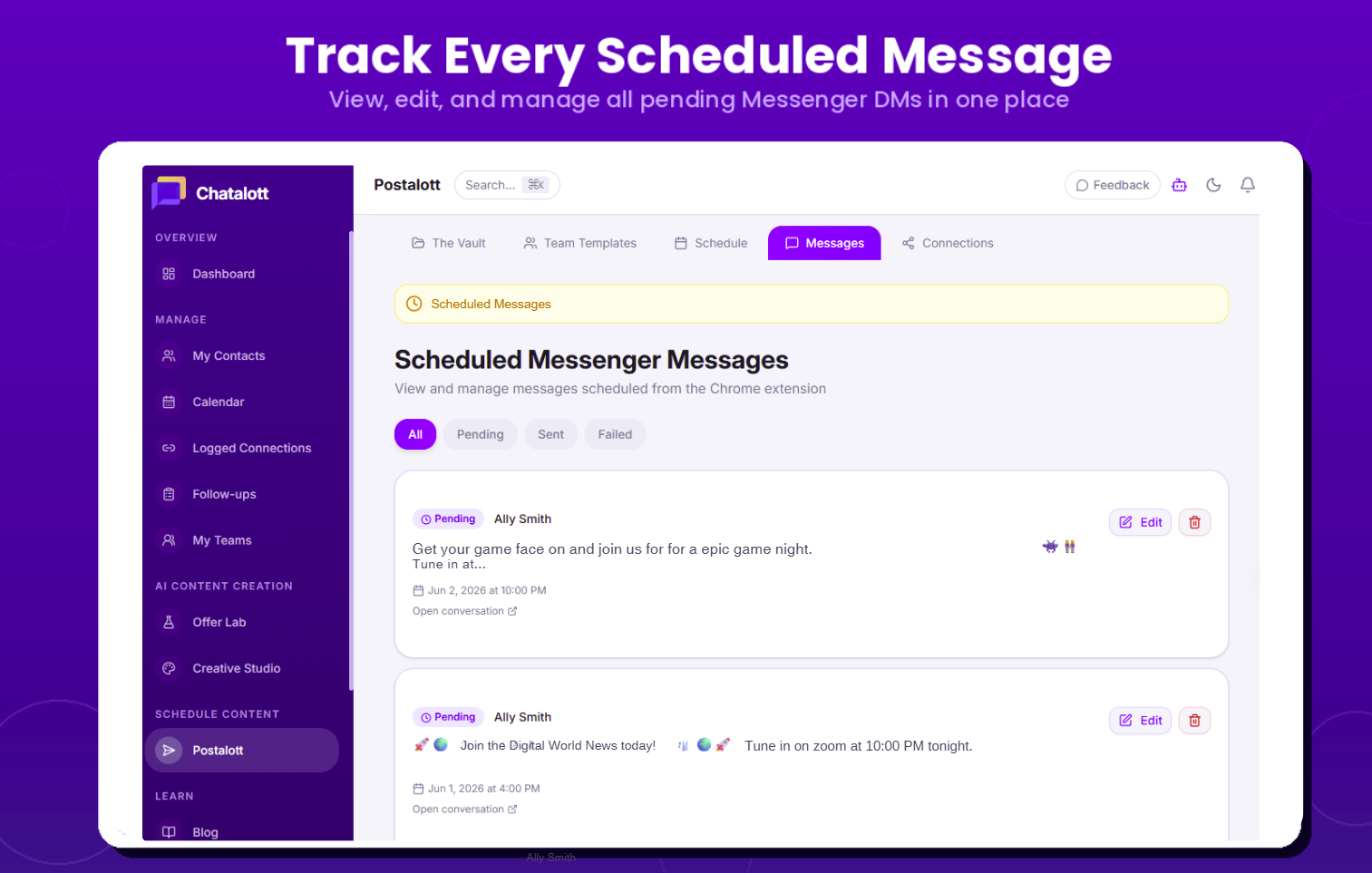
Every scheduled message shows up in the Postalott popup — sorted by send time, so you always know what's queued. Once it sends, the status updates automatically. You can cancel anything before it fires by opening the popup and deleting it.
The thing that makes this different: auto-send from Follow-ups
This is where it really clicks together.
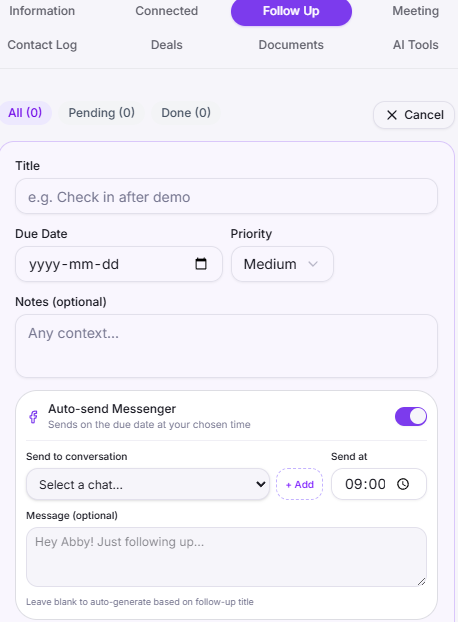
When you create a follow-up reminder in Chatalott, you can now turn on auto-send and attach a message to it. On the due date, the extension sends it for you — no extra step, no remembering to check your reminders. Your follow-up reminder stops being a note to yourself and becomes something that actually happens.
This is the brain and the hands working together at their best.
What your computer needs to do (and what it doesn't)
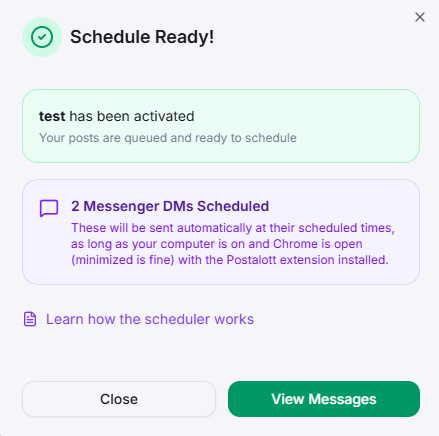
For a scheduled message to send on time:
- ✅ Computer is on and awake
- ✅ Chrome is open (minimized is fine)
- ✅ Postalott extension is installed and enabled
- ✅ Internet connection
You do NOT need:
- ❌ Facebook open
- ❌ The Postalott popup open
- ❌ To be actively using your computer
Best practice: Schedule messages for times you're normally at your desk — morning, lunch, end of day. If your computer is asleep when a message comes due, it waits until Chrome is running again and sends as soon as it can.
Frequently asked questions
Does my computer have to be on?
Yes. The extension runs in Chrome on your machine, so it needs to be on and awake at the scheduled time — not in sleep mode or shut down.
Does Chrome need to be the active window?
No. Minimized in the background is completely fine. It just has to be running.
Do I need Facebook open?
No. The extension opens the conversation itself when the time comes.
What happens if my computer was off when a message was due?
It waits. As soon as Chrome is open again, the extension picks up and sends it.
Is this against Facebook's rules?
The extension automates a message you wrote, to your contact, from your account — exactly what you'd do by hand. Keep your outreach genuine and personal, the same way you'd message a friend, and you're fine.
Ready to try it?
If you already have Postalott installed, the update comes through automatically in Chrome. If you're new, grab it from the Chrome Web Store — it takes about two minutes to set up.
Your follow-ups aren't going to send themselves. Well — actually, now they are.

.jpg)